macOS video compression
Compress videos from Finder in seconds.
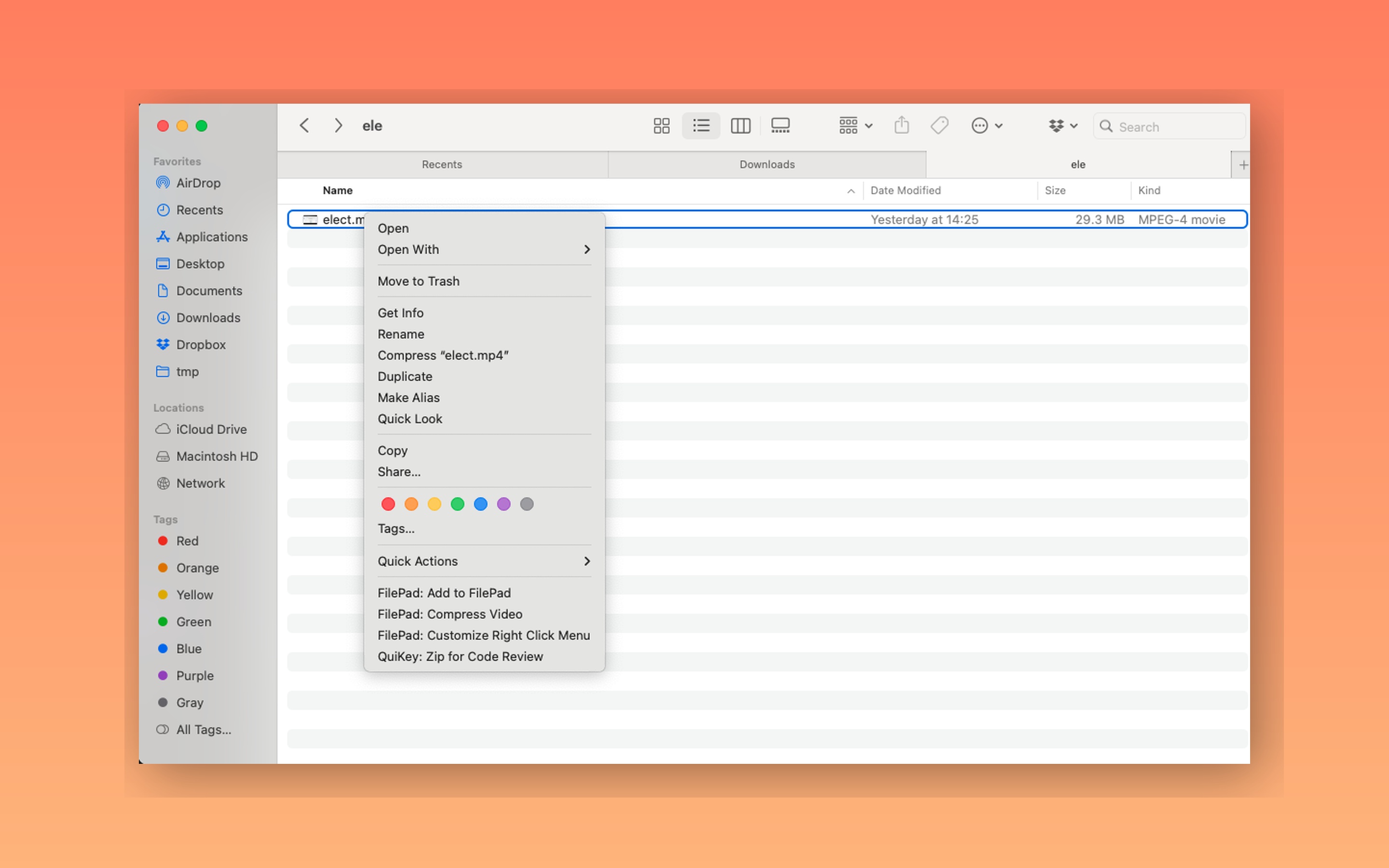
FilePad adds two simple right-click actions: FilePad: Compress Video for instant output, and FilePad: Add to FilePad for batch jobs inside a minimal strip.
- Select one or more videos in Finder
- Right-click and choose FilePad: Compress Video or Add to FilePad
- Get "-compressed" copies next to the originals, with Reveal in Finder
No accounts. No cloud. A balanced H.264 preset keeps quality while shrinking file sizes.
Built around Finder, nothing else.
FilePad focuses on two doors: an instant right-click compression and a small batch strip that stays out of your way.
Finder actions
Right-click in Finder to run FilePad Services
- FilePad: Compress VideoOne click, one output.
- FilePad: Add to FilePadQueue for batching.
- FilePad: Customize MenuOpen Services settings.
FilePad strip
A compact list for 1 to 20 items
- Queue listFilename + size at a glance.
- Compress VideosBatch output in place.
- Clear AllReset the list in one click.
Progress window
Simple status with reveal controls
- Progress barSee the current batch.
- HideKeep working while it runs.
- Reveal in FinderJump to the output.
See FilePad in action
Real screenshots from the current MVP build.
Right-click menu
FilePad actions live inside Finder Services.
Finder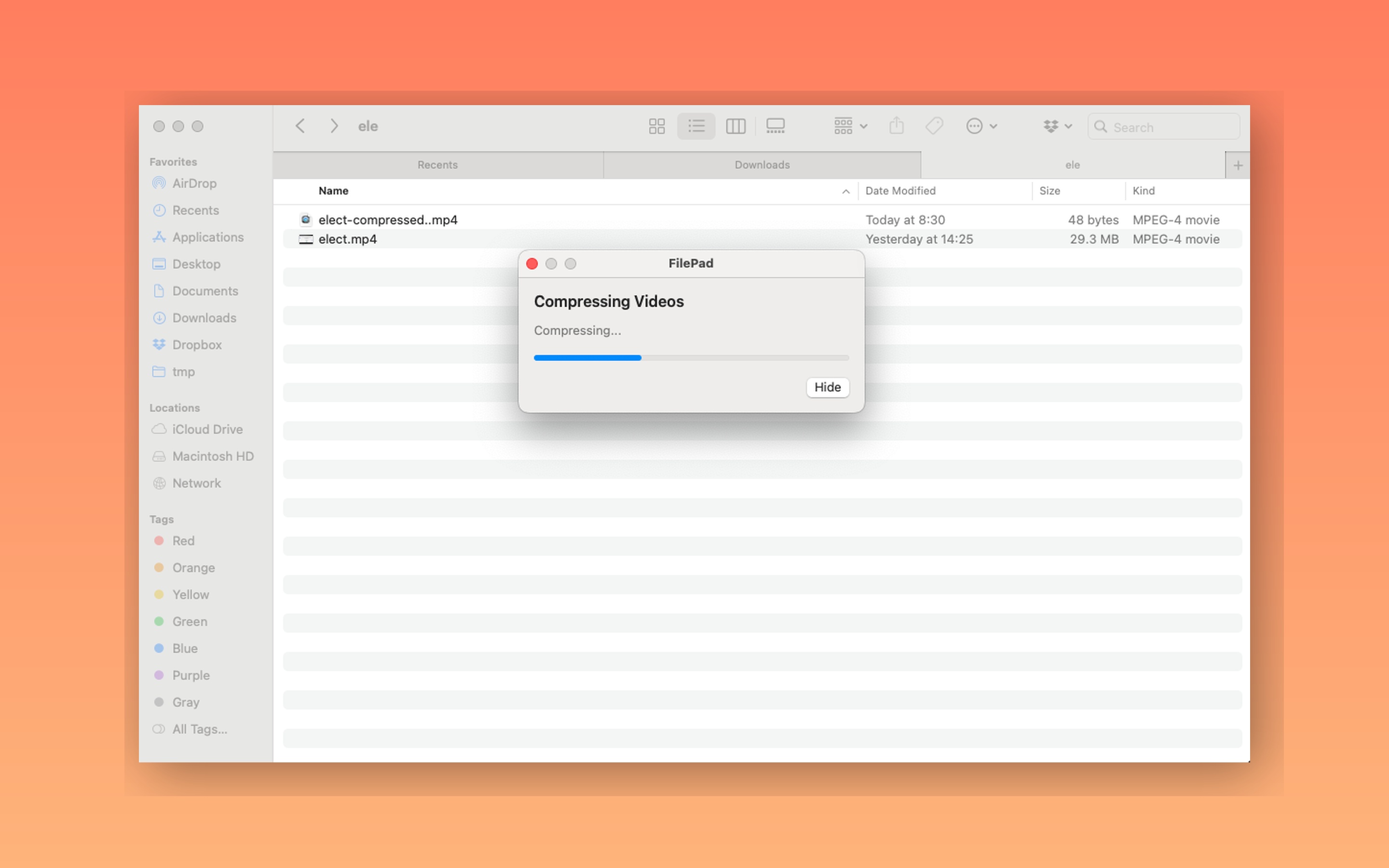
Compression in progress
Clean progress window with a hide button.
Progress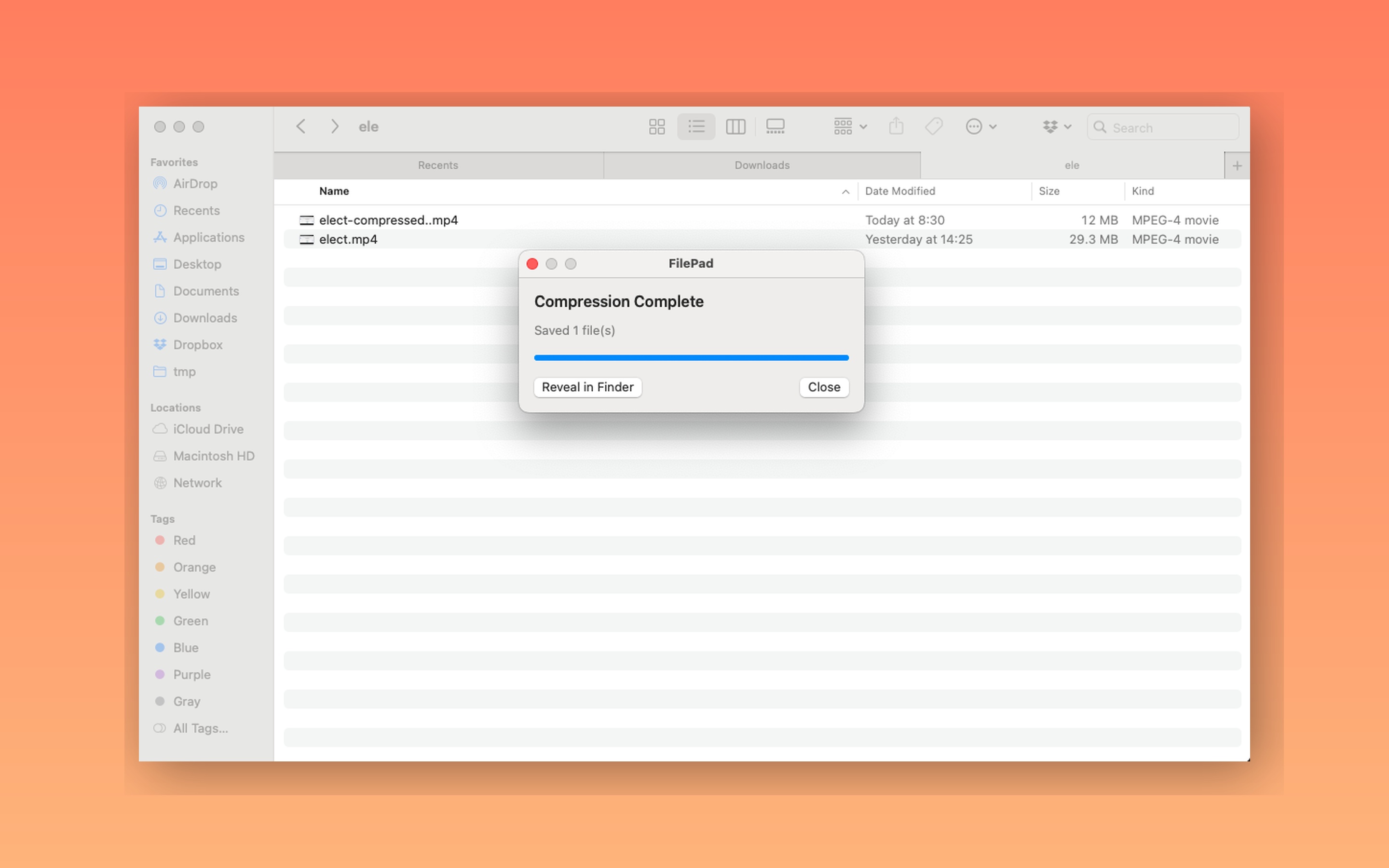
Compression complete
Reveal outputs immediately after the job ends.
Done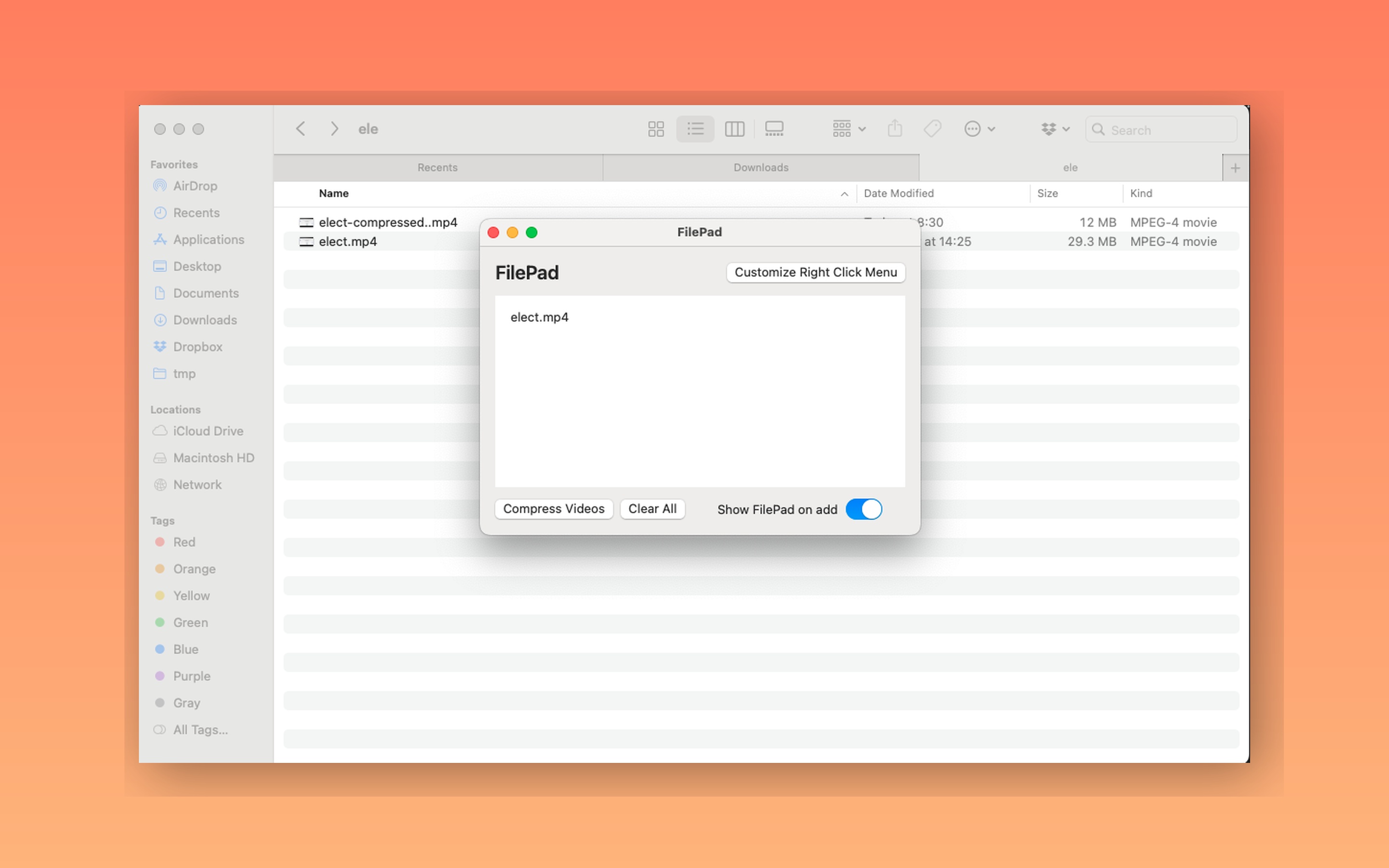
FilePad strip
Batch compression without leaving Finder.
BatchingMade for fast, repeatable compression
Instant compression
Right-click a video and generate a "-compressed" copy next to the original.
Minimal batch strip
Add multiple files, review the queue, and compress them together in one pass.
Finder-native workflow
Actions live in Finder Services, so nothing else needs to stay open.
Clear output naming
Outputs use a "-compressed" suffix with automatic collision handling.
Local by default
Compression runs on your Mac with dynamic FFmpeg download and verification.
Right-click customization
Open System Settings and show or hide FilePad services any time.
Pricing
FilePad is free during the MVP. Launch pricing will keep it lightweight and accessible.
- Unlimited compressions
- Batch strip included
- Same-folder output
- Services customization
- One-time purchase option
- App Store release
- Same workflow, no subscriptions
How it works
Select videos
Choose single files or a batch in Finder.
Pick FilePad
Compress instantly or add to the FilePad strip.
Reveal outputs
Compressed files save next to the originals.
Get FilePad
Join the MVP access list
FilePad is in active development. Request beta access and we will send the latest build and setup notes as soon as it is ready for you.
System Requirements
- macOS 13.0 or later
- Local disk space for compressed outputs
- Finder Services enabled
FilePad Beta
Private MVP build
We reply with a download link.
What to expect
- We confirm your access request
- You receive the latest build
- Enable FilePad in System Settings
- Right-click and compress immediately
Frequently Asked Questions
Does FilePad upload my videos?
No. Compression runs locally on your Mac. Files never leave your machine.
Where do the outputs go?
Compressed videos are saved next to the original with a "-compressed" suffix.
How do I hide a menu item?
Use FilePad: Customize Right Click Menu to open System Settings and toggle Services.
What file types are supported?
FilePad targets common video formats such as MP4, MOV, and AVI.
Can I batch compress?
Yes. Add multiple files to the FilePad strip, then compress them in one run.